// 2026-05-22 · Tools & Utilities · by Bob Smith
CloudConvert: Turn Any File Into Any Other File
CloudConvert converts between 200+ formats, documents, images, video, audio, ebooks, archives, fonts and CAD, right in your browser with nothing to install.
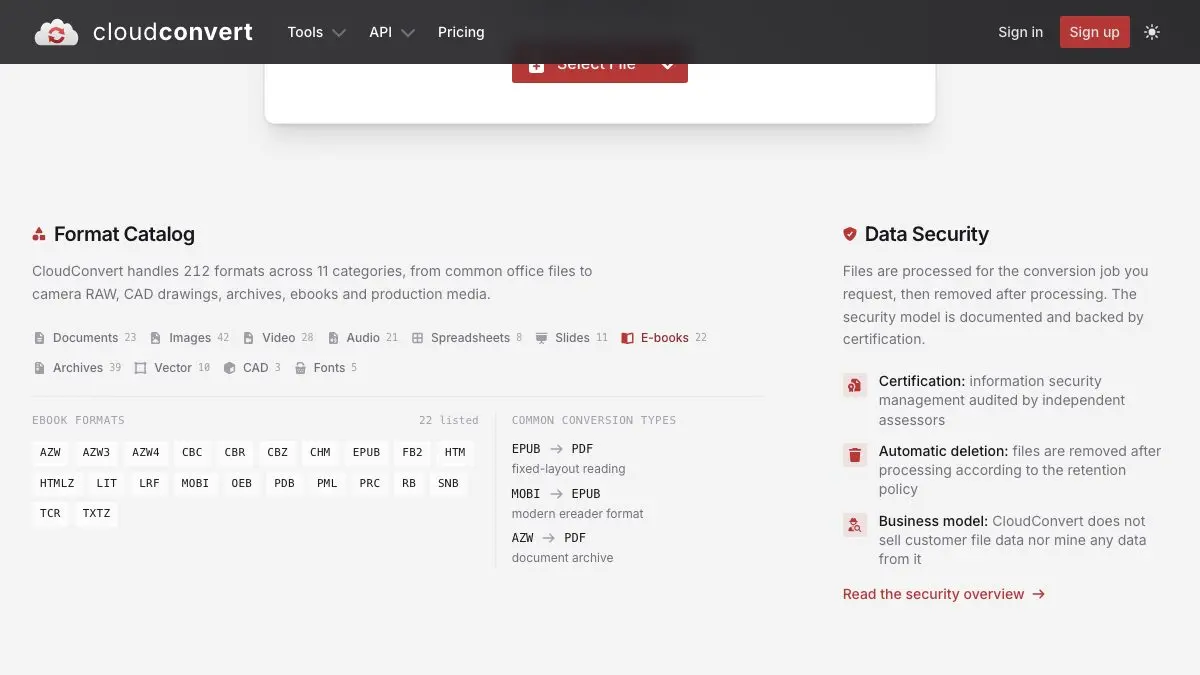
Someone sent you a .heic and your software has never heard of it. The printer wants TIFF. The e-reader wants EPUB. The video is a .mov and needs to be an .mp4 by lunch. CloudConvert is the universal adapter: 212 formats across 11 categories, converted in your browser, nothing to install, no app graveyard on your desktop.
What is CloudConvert?
CloudConvert is one of those sites you use twice a year and are pathetically grateful for both times. It does one thing, turn file format A into file format B, and it does it across a genuinely absurd range of formats.
The current spread, by category:
- Images: 42 formats
- Archives: 39
- Video: 28
- Documents: 23
- Ebooks: 22
- Audio: 21
- Slides: 11
- Vector: 10
- Spreadsheets: 8
- Fonts: 5
- CAD: 3
That’s 212 in total. Which means the answer to “can it convert…” is almost always yes, including for the weird ones: raw camera formats, obsolete ebook types, font files, vector formats that only one program on earth writes.
On privacy, CloudConvert says files are processed for the job you requested and then removed afterward, it maintains an independent security certification, and it does not sell or mine customer file data.
What can you do on CloudConvert?
- Fix phone photos. HEIC to JPG is the single most common rescue mission on the modern internet. Batch the whole camera roll.
- Make a video actually play. MOV, MKV, AVI, WEBM: pick MP4 and it will probably work everywhere. There are options for codec, resolution and quality if you want to tune it.
- Rescue an ebook. MOBI, AZW, EPUB, PDF, all the way around the circle. Your ancient e-reader can live another year.
- Convert audio for the car stereo that only reads MP3. No judgment. It happens.
- Deal with vectors and fonts. SVG, EPS, AI, plus font formats: the stuff that normally requires expensive design software just to open.
- Unpack unusual archives. With 39 archive formats supported, that .rar or .7z from 2009 isn’t a dead end.
- Automate it. The API chains import, convert and export into a single job, so you can pull from a URL, convert, and push the result somewhere else without touching a browser.
Tips to get the most out of it
- Open the options panel. Almost every conversion has a settings gear with the good stuff: resolution, bitrate, quality, page range, DPI. The default is fine; the tuned version is much better and takes four extra seconds.
- Queue multiple files before you start. You can stack a whole batch of conversions and let them run together rather than doing one, waiting, doing the next.
- Convert to the format your destination actually wants, not the “best” one. Nobody’s projector plays your beautiful lossless file. MP4 and JPG are boring and universal, and universal wins.
- Use a URL import for big files. If the file already lives online, importing it by URL beats downloading it to your machine just to upload it again.
- Keep the original. Every lossy conversion costs a little quality, and converting a converted file compounds it. Always start from the source file, never from last week’s export.
If you like CloudConvert, also try…
- iLovePDF: when the problem is specifically a PDF: merging, splitting, compressing, signing, unlocking.
- Squoosh: image compression with a live before-and-after slider so you can find the exact point where quality starts to hurt.
- remove.bg: automatic background removal, for when the file is fine but the photo isn’t.
- Ninite: if you’d rather have the desktop apps after all, this installs a whole set of them in one silent click.
The rest of the useful stuff lives in Tools & Utilities.
Frequently asked questions
What is CloudConvert?
CloudConvert is an online file conversion service that handles over 200 formats across eleven categories, including documents, images, video, audio, spreadsheets, slides, ebooks, archives, vector graphics, CAD files and fonts. You upload a file in the browser, choose an output format, and download the result, no software installation required.
Is CloudConvert free?
CloudConvert offers free conversions for casual use, with paid plans and usage-based API pricing for people who need higher volume. For the occasional 'I just need this as a PNG' emergency, you will not need to pay anything.
Is CloudConvert safe for private files?
CloudConvert states that files are processed only for the conversion job you request and are then removed after processing, that it holds an independent security certification, and that it does not sell or mine customer file data. As with any online tool, use judgment with highly sensitive documents.
Does CloudConvert have an API?
Yes. CloudConvert offers a developer API with usage-based pricing and volume discounts, supporting multi-step jobs that chain import, convert and export operations together, for example importing from a URL, converting, and exporting the result automatically.