// 2026-08-05 · Design & Creativity · by Bob Smith
iPiccy: The Photo Editor That Opens Before Photoshop Loads
iPiccy is a free browser photo editor with retouching, filters, collages and basic design tools. No install, no account, and it opens in about a second.
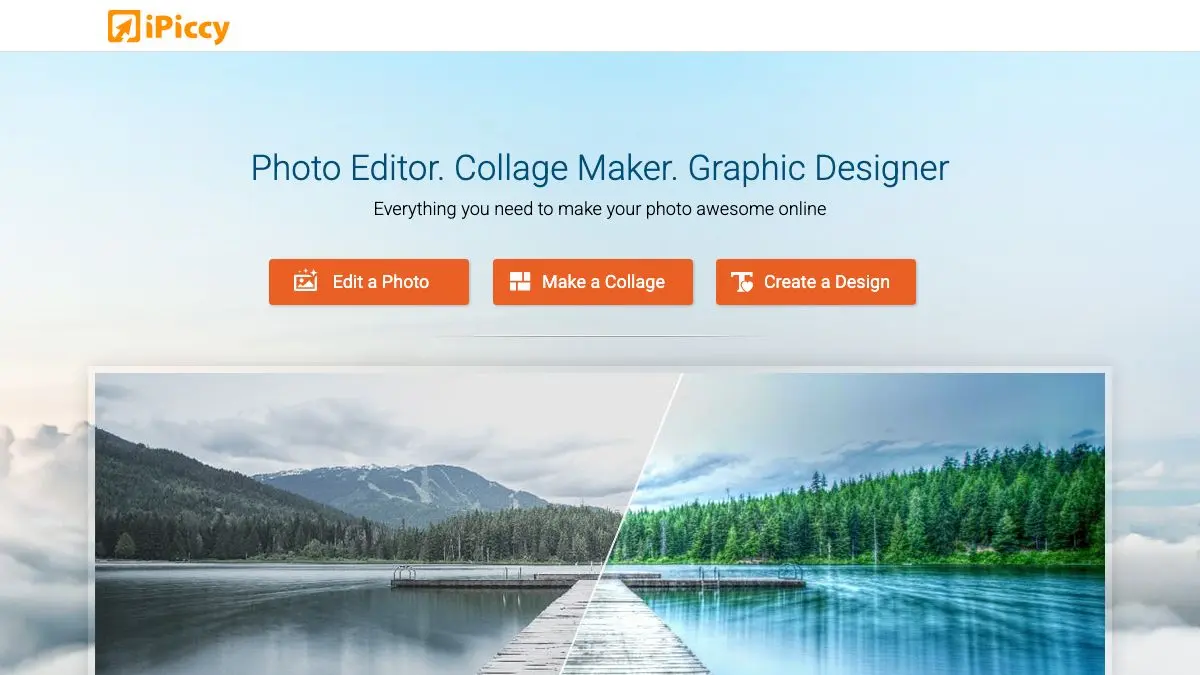
iPiccy exists for the fifteen minutes a week when you need to do something to an image and opening a real editor feels absurd. Crop a headshot. Bump the exposure on a photo somebody sent you. Put text on a picture. Remove a spot. Stack four holiday photos into a grid because somebody asked for one.
It loads in about a second, it asks for nothing, and it is competent at every one of those jobs.
What is iPiccy?
There is a whole category of browser photo editors that appeared once the web could handle canvas manipulation at speed, and most of them are thin wrappers around a filter list. iPiccy is one of the more serious ones, in that it has an actual editing surface with proper adjustment controls behind the filters.
The tool splits into a few modes. The photo editor covers the fundamentals: crop, rotate, resize, exposure, curves, levels, color balance, sharpening, plus the usual set of one-click auto-fixes for people who do not want to think about any of that. The retouching section handles skin, teeth, eyes, blemishes, red-eye and the rest of the portrait cleanup list. The effects library is large and organized, and includes the frames, textures and vignettes that a certain kind of project always needs.
Then there is the design side. You can drop text on an image with a decent typeface selection, add shapes and clip art, and use the collage builder to arrange multiple photos into layouts. That last one gets more use than it probably should, because collage tools are otherwise annoyingly hard to find without installing something.
What distinguishes it from the heavier browser editors is the lack of ceremony. There is no project concept, no cloud library to manage, no onboarding tour. You give it a file, you change the file, you download the file. That is the entire model, and for most everyday image tasks that model is correct.
What can you do with iPiccy?
- Crop and resize precisely. Free crop, fixed aspect ratios and explicit pixel dimensions, which is most of what anyone actually needs.
- Correct exposure and color. Levels, curves, saturation, temperature and the rest, with live preview.
- Retouch portraits. Blemish removal, skin smoothing, eye and teeth work, wrinkle reduction and red-eye fixes.
- Apply effects and filters. A large organized library, most with an intensity slider so you can dial them back to something tasteful.
- Add text and graphics. Overlay type, shapes and clip art for quick social images, announcements or memes.
- Build collages. Multiple layout templates with adjustable spacing and background color.
- Batch through quick jobs. Because there is no project setup, running through a folder of images one at a time is genuinely fast.
Tips to get the most out of it
Use it for the small jobs and nothing else. The value here is that it opens instantly. The moment a task needs layers, masks and a save file, you are using the wrong tool and should move to something heavier. Knowing where that line is makes iPiccy much more useful.
Reach for the manual controls, not the auto button. The one-click fixes are aggressive. Curves and levels are right there and take ten extra seconds for a considerably better result.
Pull every filter back to about half strength. The effects are built to look impressive at full intensity in a preview thumbnail. At 40 to 60 percent most of them stop announcing themselves and start looking like grading.
Resize before you export, not after. If the image is going on a web page, set the pixel dimensions in the editor. Downloading a 6000-pixel-wide file and letting a browser shrink it is how pages end up slow.
Keep the original. There is no non-destructive history you can return to next week. Edit a copy and keep the untouched file somewhere, especially for portrait retouching where it is easy to go too far and not notice until the next day.
Compress the output separately. iPiccy will hand you a perfectly good JPEG, but a dedicated compressor will make it substantially smaller at the same visual quality. It is a five-second extra step.
If you like iPiccy, also try…
- Photopea: a near-complete Photoshop replacement in a browser tab, for when the job outgrows a quick fix.
- remove.bg: one-click background removal that does the single hardest cutout job automatically.
- Squoosh: the right way to compress the image once you have finished editing it.
- Polotno Studio: a free design canvas for when the image needs to become a poster or a social graphic.
More browser creative tools in Design & Creativity, and more things that save you an install in Tools & Utilities.
Frequently asked questions
What is iPiccy?
iPiccy is a free online photo editor that runs in your browser. It combines standard photo adjustments like crop, exposure and color correction with a retouching suite, a filter library, a collage maker and simple design tools for adding text and graphics to an image.
Is iPiccy free?
The core editor is free to use without an account. As with most tools in this category, some features and an ad-free experience may sit behind a paid upgrade, so check what is included before relying on a specific feature for paid work.
Do I need to sign up or install anything?
No. You can open the site, load an image and start editing immediately with no download and no registration. Saving to your own device is a direct download.
Is iPiccy good enough to replace Photoshop?
For quick edits, yes. Crops, exposure fixes, blemish removal, text overlays and collages are all fast and competent. For layered compositing, precise masking or print production work you will still want a full desktop editor.