// 2026-08-05 · Productivity · by Bob Smith
UseTheKeyboard: Every App's Shortcuts, In One Clean Place
UseTheKeyboard is an open-source directory of keyboard shortcuts for hundreds of apps and websites, laid out plainly with no ads and no listicle preamble.
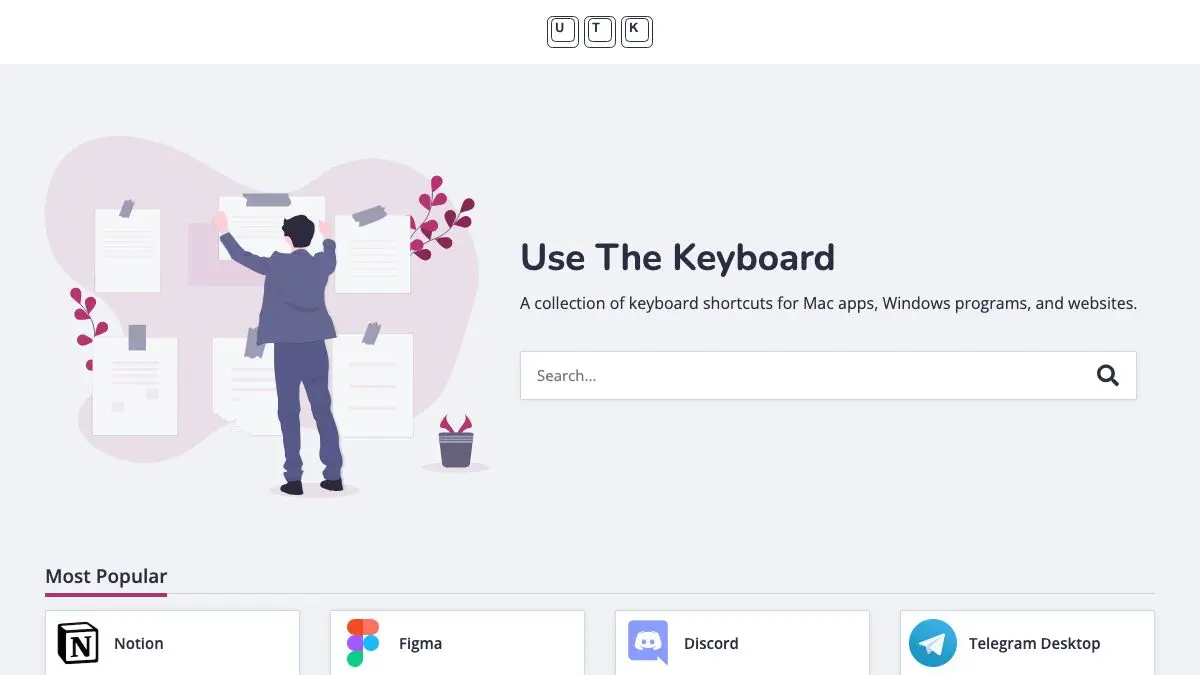
UseTheKeyboard solves a problem that should not exist. Every application has keyboard shortcuts. Almost none of them are documented anywhere you would want to read. Searching for them lands you in a listicle with four ads, an autoplaying video and a thousand-word introduction explaining what a keyboard is, all wrapped around a table you could have read in six seconds.
UseTheKeyboard is that table, for hundreds of apps, with nothing around it.
What is UseTheKeyboard?
The premise is a directory. Pick an application, get its shortcuts, laid out in groups that match how you would actually think about them: navigation, editing, formatting, window management, whatever divisions make sense for that particular tool. Where an app uses different keys on macOS and Windows, both are shown, which spares you the usual mental translation and the half of it that turns out to be wrong.
The breadth is what makes it worth bookmarking. The obvious entries are all there, the browsers and editors and design tools everyone uses, but the collection extends well into software that has never had a decent cheat sheet written about it. That is a direct consequence of the project being open source: the shortcut data sits in a public repository, and people who care about a particular tool add the entry for it.
The design deserves credit too. The pages are quiet, fast, readable, and free of the SEO scaffolding that has swallowed this entire category of information. Keys are rendered as keys. Nothing animates. There is no cookie modal and no newsletter interruption. It reads like documentation, because that is what it is.
Underneath the utility there is a small argument being made. Keyboard shortcuts are the highest-return investment available in daily computer use, and almost nobody makes it, because the discovery step is unpleasant enough that people give up and reach for the mouse forever. Making the lookup instant is the entire intervention required.
What can you do with UseTheKeyboard?
- Look up any app’s shortcuts. Search the directory, open the page, read the table. That is the whole flow.
- Browse an app you already use daily. The interesting shortcuts are always the ones you never knew existed for the tool you have used for five years.
- Compare across operating systems. Useful when you switch machines or support someone who has.
- Discover shortcuts by category. Grouped listings make it easy to learn all the navigation keys at once rather than one at a time.
- Find shortcuts for websites, not just desktop apps. Plenty of web apps have rich keyboard support that they never advertise.
- Contribute a missing app. The data is public and open to pull requests.
Tips to get the most out of it
Learn three shortcuts at a time, not thirty. Reading an entire page feels productive and retains nothing. Pick the three operations you perform most often in that app, use only the keys for a week, then come back for three more.
Start with the app you spend the most hours in. The math is simple: a shortcut in your editor or browser pays out thousands of times a year, while one in a tool you open monthly never repays the effort of learning it.
Check the tools you think you already know. Everyone knows copy and paste. Far fewer know their editor’s multi-cursor keys or their browser’s tab-reopening shortcut, and those are the ones that change how the day feels.
Look for the modifier patterns. Most applications are internally consistent: one modifier means “same thing but in a new window”, another means “same thing but backwards”. Spotting the pattern lets you guess correctly instead of memorizing individually.
Keep the page open while you work. A second monitor or a split window with the shortcut list visible for an afternoon does more than any amount of reading it once and closing it.
Fix what you find wrong. Applications change their bindings and listings drift. Since the project is open source, a stale entry is an invitation rather than a dead end.
If you like UseTheKeyboard, also try…
- Cheatography: thousands of user-made cheat sheets covering far more than keyboard shortcuts.
- Monkeytype: once your hands stay on the keys, this is where the speed comes from.
- Keybr: teaches touch typing properly by adapting to the letters you keep getting wrong.
- Learn X in Y Minutes: the same dense, no-preamble reference philosophy, applied to programming languages.
More ways to get faster at the machine in Productivity, and further reference material in Tools & Utilities.
Frequently asked questions
What is UseTheKeyboard?
UseTheKeyboard is a searchable directory of keyboard shortcuts for hundreds of applications and websites. Each app gets a clean page listing its shortcuts grouped by function, with separate key combinations for different operating systems where they differ. It is open source and free to use.
Is UseTheKeyboard free?
Yes. It is a free, open source project with no account required and no paywall. There is nothing to sign up for, and the shortcut pages load as plain content rather than behind an interstitial.
Does it cover Mac, Windows and Linux?
Where an application uses different key combinations by platform, the listings show them side by side, so a Mac user does not have to mentally translate Ctrl into Command and hope for the best. Coverage naturally depends on which platforms each app supports.
Can I contribute a missing app?
Yes. Because the project is open source, its shortcut data lives in a public repository and accepts contributions, which is how the collection has grown to cover so many niche tools. If an app you use is missing or out of date, submitting a fix is the intended path.